





Microsoft has updated the confirmation dialog that appears after repeatedly pressing the Shift key in Windows 11, adding an option to silence the prompt without opening the Settings app. The experimental change introduces a checkbox to disable the Sticky Keys shortcut directly from the pop-up window [1]. Testers in the Windows Insider program can now dismiss the prompt with a single click. The change addresses a keyboard interruption that has frustrated PC gamers and fast typists since the operating system first introduced the shortcut in 1995.
A Direct Checkbox for the Sticky Keys Shortcut
The update surfaced in preview release notes on November 6, 2026, rolling out to Beta Build 26320.9876 and Experimental Build 26340.9882 as part of the Windows 11 version 26H2 development branch [6]. Windows engineering team member Jen Gentleman shared the updated interface on X the following day, explaining that Microsoft wanted to give users a faster way to dismiss the alert. “We’re adding the ability to permanently turn off the prompt to enable sticky keys from the pop up itself,” Gentleman wrote. While the feature remains part of a controlled rollout in the Experimental channel, its presence across two separate preview builds indicates that Microsoft plans to bring the option to all Windows 11 users in a future general update [1].
The updated window adds a checkbox labeled “Never turn on Sticky Keys with this shortcut” right above the settings link [5]. In previous versions, closing the prompt only dismissed it temporarily. Pressing Shift five times again would summon the window back. That changes with the new checkbox. The option silences the prompt from the first encounter [4].
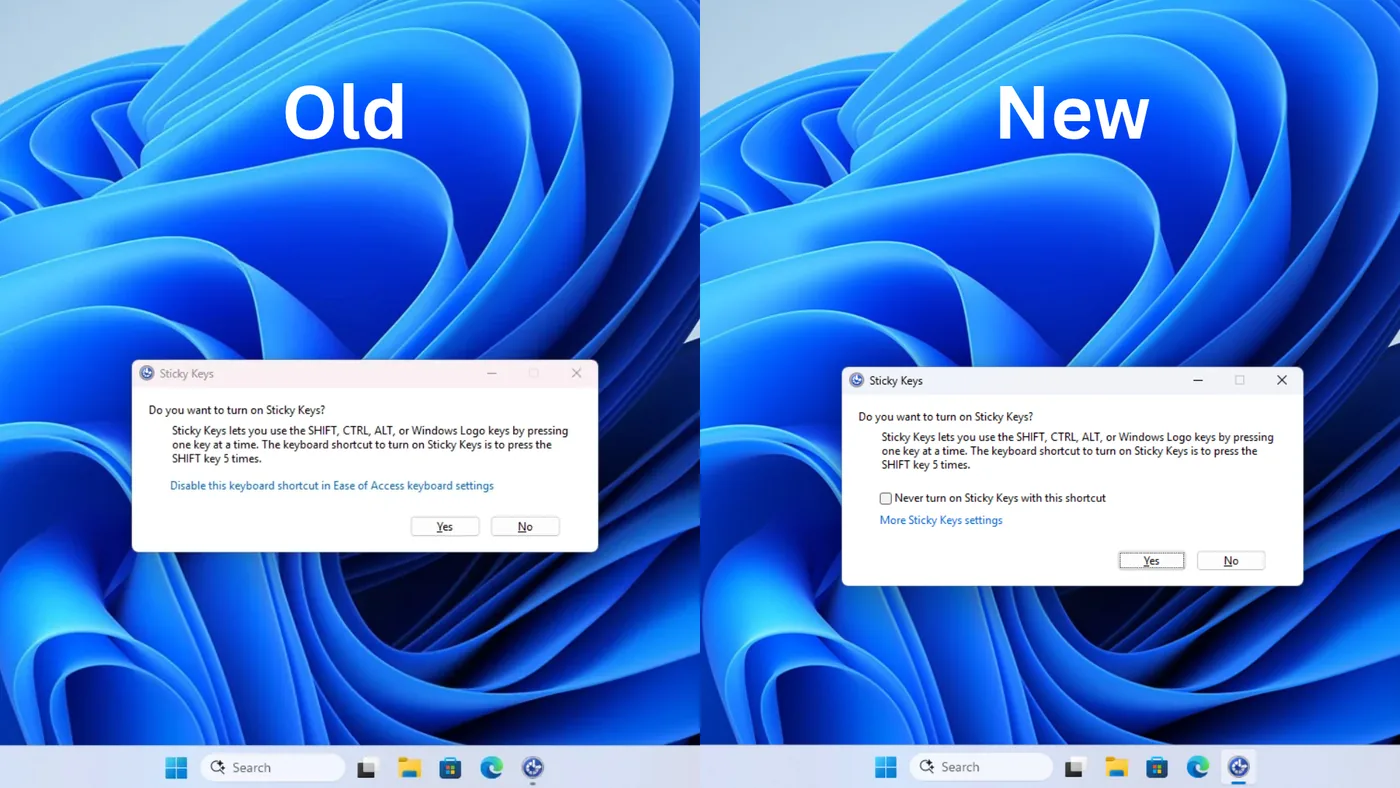
Microsoft is also extending the same checkbox to Filter Keys, another accessibility tool designed to assist users with motor tremors [2]. That feature uses a shortcut triggered by holding down the right Shift key for eight seconds. Because users can trigger that shortcut accidentally while holding keys during games or detailed formatting tasks, the confirmation prompt now includes the same opt-out option. Gentleman noted that turning off the shortcut through the Settings app has always been possible, but acknowledged that most users only seek out the toggle after dismissing the pop-up dozens of times. “I do wish more people knew about all the accessibility options in Windows – there are so many helpful things,” she added [5].
Accidental Triggers During Gaming and Fast Typing
Why does the shortcut trigger so easily during fast keyboard input? Many PC games assign fundamental movement controls to the Shift key, including sprinting, crouching, or walking quietly during matches [4]. Players who tap the key rapidly during competitive multiplayer games often activate the shortcut by accident, pulling up the alert window in the middle of battle [5].
The unexpected interruption can have frustrating consequences for players in competitive matches [4]. When the dialog appears, Windows plays a sharp alert beep and pulls focus away from the active game window. In full-screen titles, that shift in focus can minimize the game or freeze keyboard inputs during critical moments. One player responding to Gentleman remembered an online title that used Shift to swap potions, where the unexpected prompt caused countless character deaths during boss encounters. Outside of gaming, fast typists and programmers face similar issues when capitalizing code variables or tapping modifier keys while working in creative software, where repeated Shift inputs routinely interrupt active typing sessions [2].

Despite the annoyance for gamers, Sticky Keys remains an important mobility aid for people who type with a single finger or mouthstick [5]. The feature latches modifier keys so they stay active until the next key is pressed. Users can press Ctrl, then Alt, then Delete in sequence, or open Task Manager (Ctrl, then Shift, then Esc) without holding keys simultaneously [3].


Pinball Origins in Windows 95
The five-tap trigger dates back more than 31 years to the development of Windows 95. Charles Oppermann, who joined Microsoft in 1994 as Program Manager for Windows accessibility after creating the first version of the JAWS screen reader, shared the history behind the prompt on X. Oppermann explained that he wrote the accessibility dialogs in early 1995 after Brad Silverberg, the executive leading the Windows 95 team, noticed his children were constantly triggering Sticky Keys while playing Space Cadet Pinball during family computer sessions. Silverberg recalled a tough meeting with the chief information officer of Massachusetts, who joined officials from Missouri to demand strong accessibility support in Windows 95. “Deservedly so,” Silverberg added, reflecting on the state government pressure [5].
Oppermann revealed that his team considered adding a disable checkbox in 1995 but decided against it to give greater visibility to Windows accessibility features. The Windows 95 Resource Kit documented the prompt as a precaution against accidental use, but users still had to discover the settings path to turn off the shortcut permanently [5].
Modernizing Dialogs and Managing the Sticky Keys Shortcut
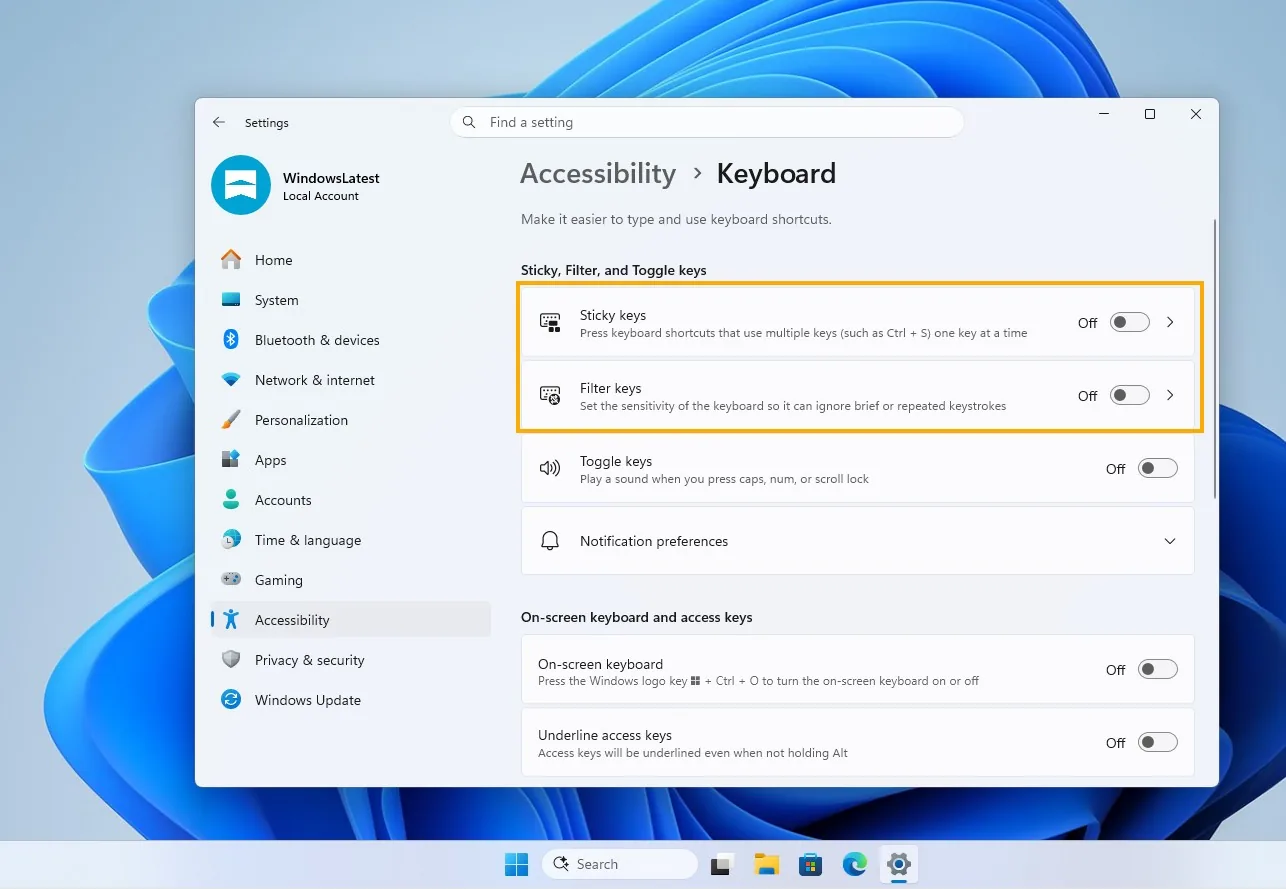
Users can still manage assistive keyboard tools through the Settings app under Accessibility > Keyboard, even after selecting the prompt checkbox [1]. The dedicated menu lets people toggle Sticky Keys on or off, adjust sound feedback when pressing modifier keys, or automatically turn off the feature when two keys are pressed simultaneously to avoid confusion [2]. Users can also turn off the shortcut trigger for Toggle Keys, which plays an alert tone whenever someone taps Caps Lock, Num Lock, or Scroll Lock. Keeping these settings within the modern Settings interface ensures that users who genuinely need assistive tools can customize them without relying on hotkeys that might trigger accidentally during everyday computing tasks [1].
The prompt itself still uses an aging Win32 window frame that lacks modern visual design elements. It does not support dark mode or modern window styling. When users on X asked about converting older dialogs to WinUI, Microsoft executive Marcus Ash replied: “Noted and working on that too” [5].
Ash, who serves as CVP of Design and Research for Windows and Devices, previously stated in March that Microsoft is developing internal tooling to modernize classic dialogs across the operating system. Partner Director of Design March Rogers later confirmed that design teams are working through an internal list of legacy interfaces. That list includes older utilities such as the classic Defrag tool, and Windows Latest recently tested an experimental WinUI Registry Editor sample. These efforts show that Microsoft is actively working to update older dialogs and replace vintage Win32 code with modern WinUI components [5].

Wider Quality Improvements Across the Operating System
The Sticky Keys checkbox fits into a broader effort by Microsoft to address minor friction points across Windows 11 [3]. In October, Microsoft VP of Windows Experiences Navjot Virk published a detailed blog post highlighting upcoming quality-of-life updates. Those improvements focused on fixing common interface frustrations that have annoyed users for years.
Virk detailed several user-requested updates, including fixing search results in Windows Settings so that queries like power and sleep settings appear without errors [3]. The team also introduced semantic search capabilities in the Photos app to help users find specific people or objects stored locally, on connected smartphones, or across OneDrive cloud folders. Microsoft has taken a similar approach to streamlining core interface elements when Microsoft revamps the Windows 11 context menu in preview releases. Resolving these small paper cuts helps refine the daily desktop experience for millions of users who rely on the platform.
For now, the updated dialog remains confined to Windows Insider preview builds while Microsoft gathers feedback from testers [6]. The company has not set a formal release date for general availability, but the positive reception from gamers suggests the checkbox will eventually roll out to all Windows 11 users.
- ONLINE NEWS Bonk, L. (2026, November 9). Windows 11 is finally adding an easier way to disable the Sticky Keys pop-up. Engadget. [Article Link]
- ONLINE NEWS Endicott, S. (2026, November 9). Windows 11’s ‘Do you want to turn on Sticky Keys?’ prompt is getting a ‘never ask again’ option. Windows Central. [Article Link]
- ONLINE NEWS Davis, W. (2026, November 8). Microsoft makes the Windows Sticky Keys dialog easier to turn off. Gizmodo. [Article Link]
- ONLINE NEWS Batt, S. (2026, November 8). Microsoft is finally making it easier to disable Sticky Keys after you spammed the Shift key too much. XDA. [Article Link]
- ONLINE NEWS Abhijith, M. B. (2026, November 8). Microsoft took 31 years to let you kill Windows 11’s Sticky Keys popup, which exists because of a Windows 95-era pinball game. Windows Latest. [Article Link]
- ONLINE NEWS DrUsmanSaleem. (2026, November 9). Windows 11 will finally let you silence the Sticky Keys prompt for good. TechPowerUp. [Article Link]


