




Microsoft released optional preview update KB5127936 on October 28, introducing long-awaited customization tools for the Windows 11 context menu to give users direct control over desktop commands. The package targets Windows 11 versions 25H2 and 26H2, allowing people to personalize right-click options and bring back classic text labels. It also adds a cloud-based recovery tool called Cloud Rebuild while Microsoft contends with declining revenue from commercial Windows licenses [1].
New Controls for the Windows 11 Context Menu
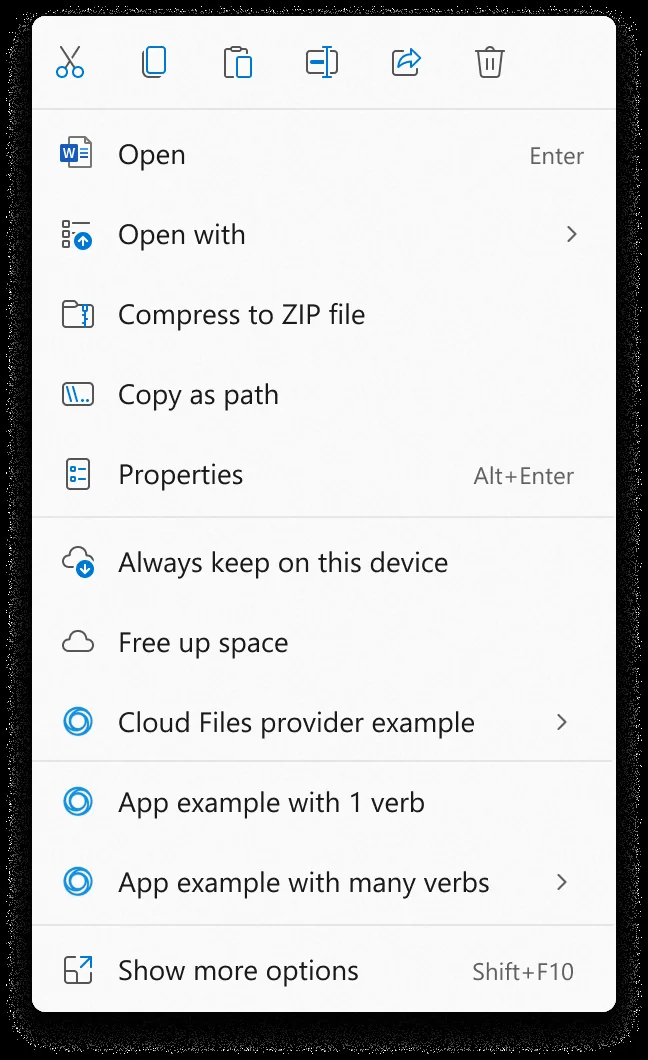
When Windows 11 first arrived, Microsoft altered File Explorer by placing core file operations into a row of icons while hiding older commands under a secondary click. The change broke muscle memory. Frustrated power users spent years building custom scripts and running background tools to recover their preferred desktop workflows before Microsoft addressed the problem. With this preview build, Microsoft added a new Customize menu button at the bottom of the popup [1].
The new button opens a panel to pick which actions appear when someone right-clicks a file in Windows 11. People can toggle built-in system tools like Send to or Create Shortcut on or off to match their daily workflow. Users can also rearrange the display order of commands and choose whether extensions from newly installed applications stay on the main surface or sit inside submenus. This flexibility keeps clutter away [1].
The layout helps cut down clutter from third-party programs. Users can hide entries they never touch. Andreas Thors reported for PC för Alla that these controls give Windows 11 owners far more personal oversight [2].
Classic Text Labels for File Commands
One of the most noticeable improvements in the preview build is the ability to replace the upper row of icons with standard text names. For years, Windows 11 forced essential file commands such as Cut, Copy, Paste, Rename, Delete, and Share into small glyphs lined up along the top edge of the context window. Many people found those symbols slower to identify than clear words, especially when sorting through dense folders in File Explorer. Under the updated configuration options in KB5127936, users can turn off that icon strip and display conventional text entries that restore the familiar look and feel of Windows 10. That adjustment brings back a layout that millions of desktop users relied on throughout previous Windows releases [2].
Interface adjustments go beyond simply swapping icons for words. Users can reposition the Properties entry to sit at the foot of the menu, matching older desktop conventions that power users still prefer. The customization settings also permit people to remove the Print option entirely if they never output documents to paper. Print commands can be removed. It’s a straightforward approach that lets users strip out useless clutter [3].
System responsiveness played a major part in driving user requests for a simplified menu structure. Past release cycles saw an emergency patch to stabilize Windows 11 when unexpected bugs degraded core desktop usability. In this release, Microsoft said the updated context menu was optimized to load faster, open more smoothly, and feel noticeably lighter during busy daily computing sessions [2].


Gradual Rollout and Tester Feedback
To test the new context menu, users must navigate through Settings to Windows Update, open Advanced options, and find KB5127936 under Optional updates. The download does not guarantee immediate access to the new customization features. Microsoft uses a staged rollout that delivers features gradually to selected computers, meaning two machines on the same update build might show different menu capabilities [2].
User reactions on Reddit reflected both satisfaction with the visual changes and irritation over the staged delivery method. One tester said: “The new context menu is so good! Way faster, customization is cool.” Another user welcomed the improvement but pointed out the long timeline: “Not bad imo. Crazy it took them 5 years though.” Testers left waiting for server flags shared their annoyance, with one commenting: “Those gradual rollouts though…” [3].
Some testers used an open-source utility called ViVeTool to force the new interface onto their PCs. Darren Allan of TechRadar cautioned against using forced activation utilities on preview software because bypassing staging flags on unreleased code carries a genuine risk of unexpected operating system crashes. The official November update arrives in under two weeks [3].

Cloud Rebuild for System Recovery
Beyond interface refinements, preview update KB5127936 introduces an operating system recovery feature called Cloud Rebuild. The new tool allows computers to download and reinstall Windows 11 directly from internet servers even if an existing installation fails to boot. By pulling clean system images and necessary hardware drivers straight from Windows Update, it removes the need for physical recovery media or prepared USB installation drives [1].
Microsoft categorized Cloud Rebuild as a recovery mechanism, but its practical operation functions more like a fresh installation than a traditional system repair. Existing files, user documents, and installed applications are not preserved during the reinstallation process, so people must maintain independent backups to keep their data safe. The tool focuses on restoring unbootable machines to a clean working state as quickly as possible without requiring external boot media. For users who plan to dispose of hardware or reassign a computer to a new person, the utility also includes an option to sanitize entire system drives before installing the fresh operating system. That drive sanitization option helps prevent unauthorized access to private corporate records or discarded personal information [1].
Cloud recovery simplifies maintenance tasks for desktop owners. In addition to recovery improvements, Microsoft included updates to Xbox mode and system settings in its official preview announcement. These changes show that Microsoft wants to make recovery simpler [1].

License Revenue and the Windows 11 Context Menu
The timing of the updated Windows 11 context menu aligns with broader economic pressures facing Microsoft’s personal computing division. In its latest quarterly financial results, Microsoft reported a continuing drop in revenue from commercial Windows licenses sold to PC manufacturers. As global PC shipments cool, keeping existing desktop users satisfied becomes increasingly important for maintaining operating system loyalty [1].
Power users spent half a decade pushing for a faster and cleaner desktop interface. Microsoft addressed those complaints directly: “The updated menu opens more quickly, reduces clutter, and gives you more control over the commands and app extensions that appear when you right-click.” Testing by early adopters confirms that the refreshed menu opens noticeably quicker than the previous interface [3].
As the official November rollout nears, Microsoft appears willing to compromise on interface designs that previously provoked persistent user pushback. Users gain practical control over their daily workspace with classic text commands and customization switches. For millions of PC owners, having a fast and predictable right-click menu makes everyday computing much smoother [1].
- ONLINE NEWS Ars Technica. (2026, October). Windows 11 gets right-click menu improvements as PC revenue slides. [Article Link]
- ONLINE NEWS Thors, A. (2026, October 29). Windows 11’s right-click menu is revamped. You can customize it now. PCWorld. [Article Link]
- ONLINE NEWS Allan, D. (2026, October 29). Windows 11’s right-click menu gets a vital tune-up, and it looks great — the main complaint is people can’t get it quick enough. TechRadar. [Article Link]


