





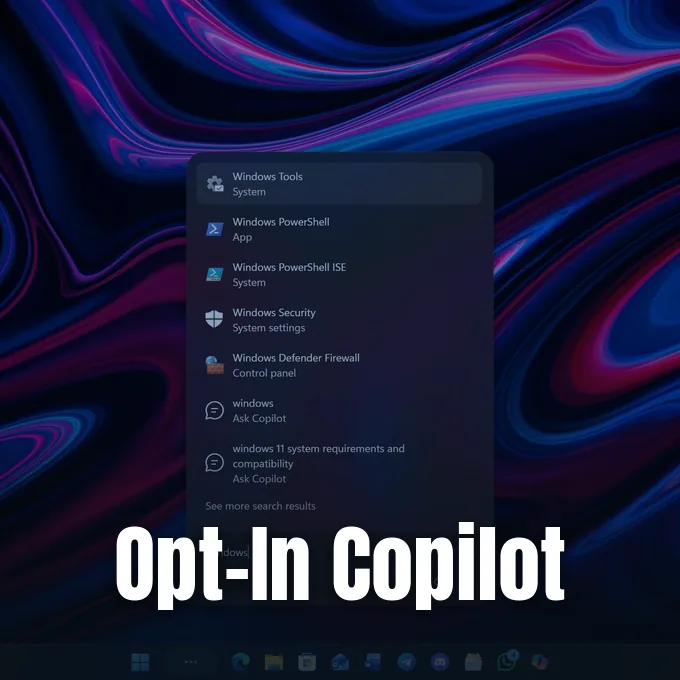
Microsoft confirmed that it will add Copilot integration to its rebuilt Windows 11 search experience later this year, but promised the artificial intelligence tool will be entirely optional. Windows chief Pavan Davuluri first revealed the overhauled search interface during the company’s Windows and Surface showcase on October 7 [6]. The new design rebuilds the taskbar search box using native code to speed up daily interactions. Instead of forcing AI features on everyone, Microsoft plans to let users decide whether they want chatbot answers inside their daily queries [1].
Opt-In Copilot in Windows 11 Search
The decision to make Copilot opt-in marks a shift from earlier testing programs. Last year, Microsoft tested an interface called Ask Copilot that replaced the standard search bar with an AI prompt box, but testers had no option to turn off the chatbot without losing the cleaner layout. That experiment was paused over the summer. Earlier this year, Microsoft announced plans to reduce assistant bloat across the operating system, a strategy that also included retiring OneDrive Copilot shortcuts from File Explorer. The company is now decoupling core system tools from assistant services [1].
Users who enable the integration will receive conversational responses directly in the search interface without launching an external browser. When a question requires a longer exchange, a shortcut lets users jump straight into the standalone Copilot desktop program [4]. “We will also begin adding the option to integrate the new Copilot with Search on the taskbar, so you can get quick answers inline from Search, and if you want to have a richer conversation, you can jump from Search directly to the full Copilot app,” Microsoft said in an official statement. The optional integration will roll out first to select markets before expanding elsewhere [1].

Pureinfotech writer Mauro Huculak noted during earlier previews that the interface reads “Ask Copilot anything” and provides shortcuts for voice and image features. Those cloud services connect through standard Windows application programming interfaces, so the assistant doesn’t gain open access to private local files unless a user grants explicit permission. If someone prefers a simple desktop without assistant prompts, they can leave the switch turned off or uninstall the standalone Copilot app completely [8].
Rebuilding the Taskbar on WinUI 3
Behind the visual makeover sits a complete overhaul of core system code. Microsoft built the updated search window on WinUI 3, replacing the older framework that drew persistent user complaints about slow response times and heavy memory consumption [3]. Early internal benchmarks showed measurable improvements in responsiveness, though Microsoft hasn’t released exact performance figures for public comparison [5]. The new code handles misspelled words and synonyms much better, helping users find buried system utilities even when they mistype common terms [3].
The interface layout changes significantly compared to legacy versions of Windows. Instead of splitting search into a narrow left-hand list and a wide preview pane on the right, the updated window arranges all results in a single, streamlined column [6]. Microsoft made this adjustment after telemetry showed that almost all mouse clicks landed on the primary results column rather than the preview panel, as Mango Developer reported [5]. The change cuts down visual clutter and reduces the overall window footprint on the desktop [3]. In July 2026, Microsoft removed banner advertisements and promotional cards from the interface, while also providing dedicated toggles to turn off web results and Microsoft Store suggestions entirely [6]. Users who want a pure offline search tool can strip out external web noise without touching third-party registry hacks [5].
File previews are also getting a thorough redesign. Future preview drops will introduce rich inline thumbnails for presentations, documents, and photos directly inside the single-column list. Users can inspect image files or check document details without waiting for heavy desktop applications to launch [3]. The taskbar search box opens at the bottom center of the display during current tests, though support for alternative taskbar positions remains limited in early testing [5].


Running Actions Locally in Windows 11 Search
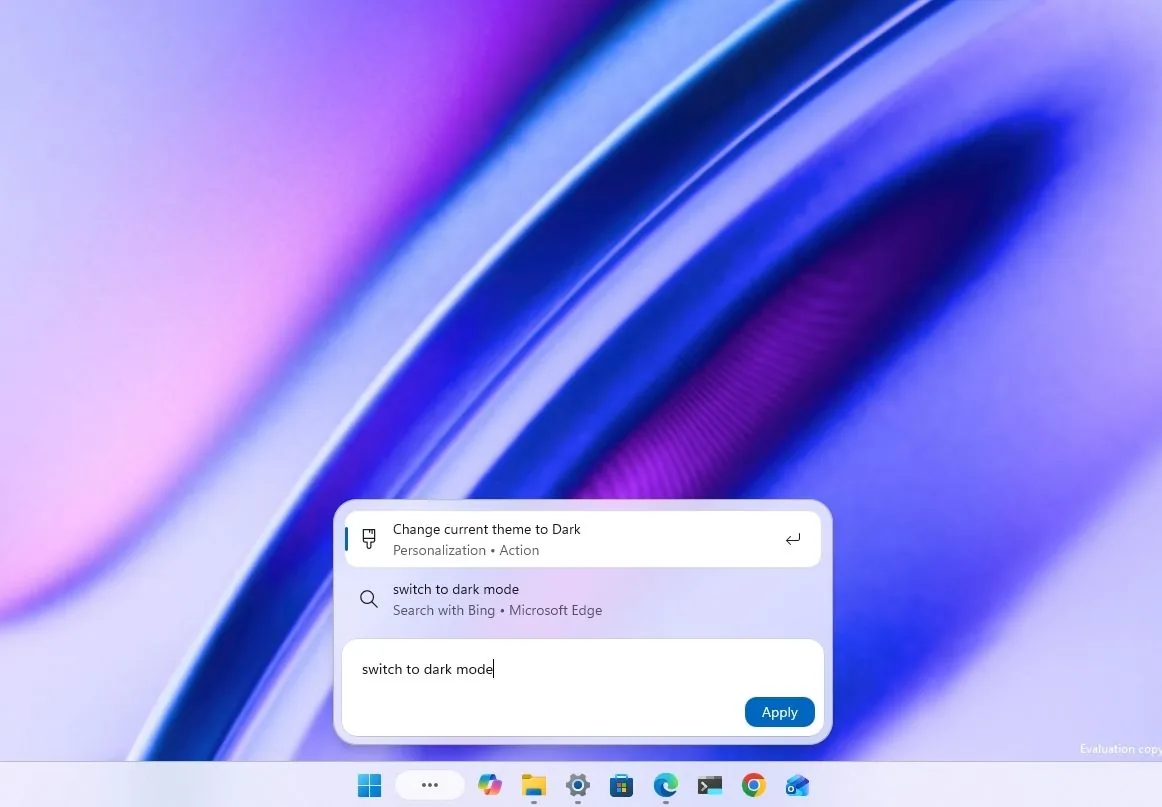
The most practical addition to Windows 11 search is typed inline commands. Rather than merely indexing static documents, the search box can now execute hundreds of common desktop adjustments directly from the taskbar [6]. Users can type simple phrases such as “switch to dark mode,” “turn on Bluetooth,” “dim my screen,” or “mute” to change system states instantly without opening the Settings app [3]. Quick commands cut down repetitive navigation through nested control panels during daily work [5].
To power these quick system adjustments, Microsoft deployed a compact machine learning model that runs locally on the central processor. The tool doesn’t rely on a heavy large language model or remote cloud servers, which means it runs on standard computers without needing an expensive Copilot+ PC or a dedicated neural processing unit. The local model parses user intent and routes commands directly to native system toggles, preserving privacy by keeping basic system queries on the local machine. Devices with conventional x86 or Arm processors can execute these actions with minimal battery drain, according to technical details shared by Windows Central [3].
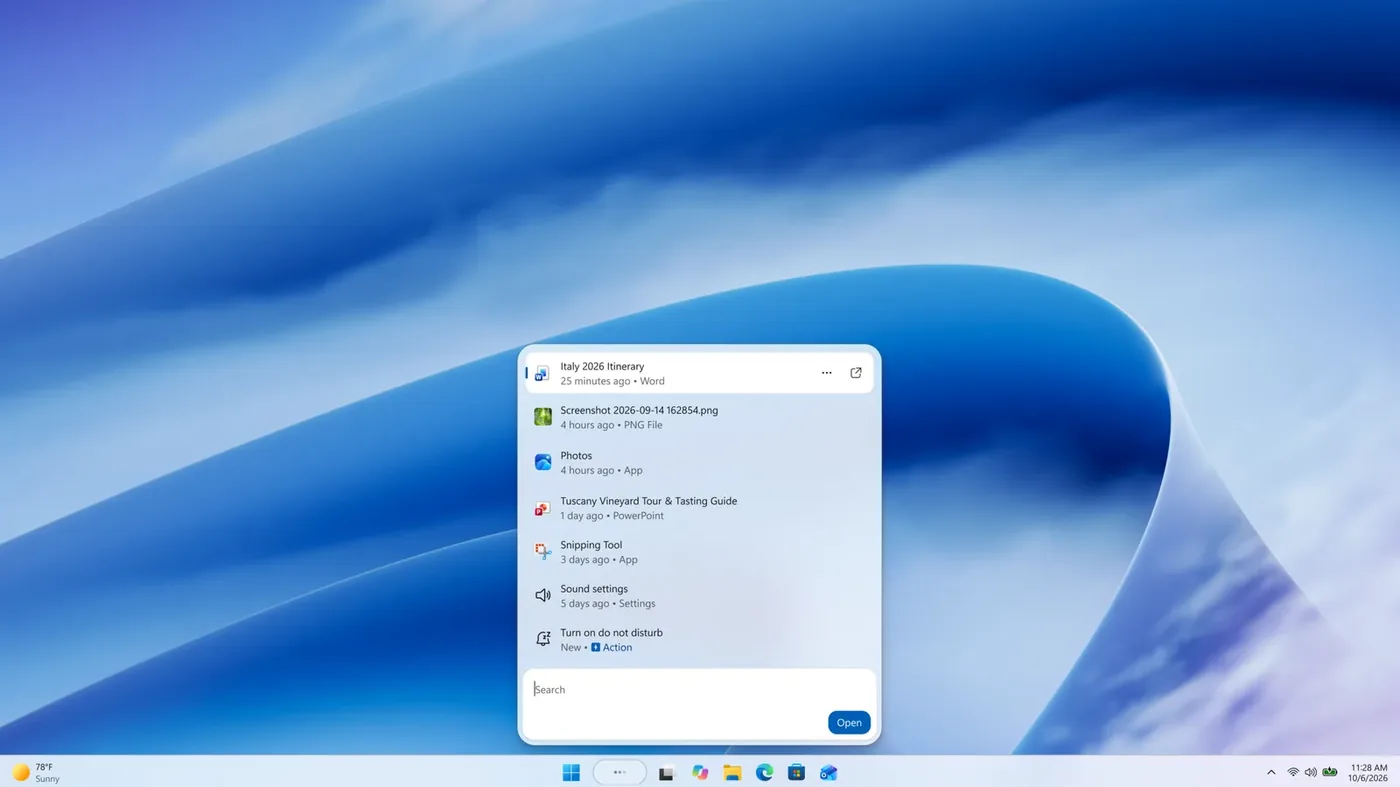
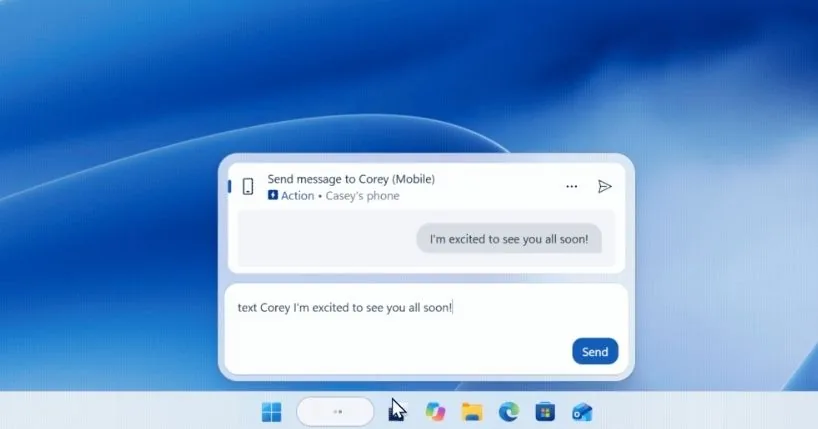
Recent preview releases expanded these quick capabilities with interactive hardware sliders. Insiders can now adjust master volume, display brightness, and cursor size directly inside search results [5]. Phone Link integration also lets the search box trigger actions on a connected smartphone [3]. Users can silence an Android phone with Do Not Disturb or send a quick text message without picking up their handset. Microsoft plans to bring matching phone actions to Apple iPhone devices early next year [5].
Insider Preview Builds and Setup Steps
Enthusiasts who want to test the new interface before general availability must join the Windows Insider Program. The updated search experience is currently available in the Experimental channel for versions 26H2 and 26H1. Insiders running build 26340.9616 on version 26H2 (or build 28120.3181 on version 26H1) can access the underlying code [3]. Microsoft released updated builds on October 30, designated as 26340.9843 and 28120.3393, which brought additional slider controls and stability fixes to preview machines [5].
Enabling the new search box requires flipping an experimental flag inside system settings. Testers must open Settings, select Windows Update, and run a manual check to ensure their system has received the latest preview files. After restarting the PC, users must navigate to Settings > Windows Update > Windows Insider Program > Feature flags, where they can enable the New Windows Search Experience toggle. If the flag doesn’t appear, skipping the mandatory update check or forgetting to reboot is the most frequent cause. Feedback can be submitted directly through the Windows Feedback Hub by pressing (Win + F) and navigating to Desktop Environment > Search [5].
Microsoft hasn’t set a broad release date for regular Windows 11 installations. Company representatives confirmed that the new search will begin rolling out in stages before the end of 2026 [1]. However, the preview currently works only in the English language, and searches initiated from the Start menu still load the older search interface [5]. Start menu integration won’t arrive until 2027, when Microsoft plans to harmonize search experiences across the entire desktop environment [3].
Performance Tuning in the November Update
The search revamp fits into a broader push to refine Windows 11 performance. Microsoft prepared several core system tweaks for the November Patch Tuesday release, as reported by PCWorld. Laptop users will receive Adaptive Hibernate, a battery management feature that dynamically adjusts hibernation timers based on battery percentage to prevent overnight drain without causing sluggish wake times. Edge browser performance also improves through Accelerated App Launch, which speeds up startup times when the processor is already handling heavy multitasking workloads [2].
Privacy controls and accessibility tools are also getting attention in the upcoming update. The operating system organizes camera, microphone, and location permissions with clear descriptions of how software accesses personal data. Multi-monitor users gain independent zoom controls for Windows Magnifier across different screens. Testers can preview these improvements ahead of the mandatory monthly release by installing optional preview update KB5127936 for versions 25H2 and 26H2 [2]. That same preview package introduces a revamped Windows 11 context menu with customizable right-click options.
As Microsoft fine-tunes these core desktop elements, keeping AI optional in Windows 11 search addresses longstanding user feedback about system bloat. Providing native performance improvements while letting people choose whether to turn on Copilot shows a more balanced path for the operating system [3]. If the rebuilt WinUI 3 interface delivers reliable results on everyday hardware, Windows users will gain a faster desktop without unexpected artificial intelligence distractions [1].
- ONLINE NEWS Bowden, Z. (2026, November 5). Copilot is coming to Windows 11’s new Search UI later this year, but Microsoft promises it’ll be entirely optional this time. Windows Central. [Article Link]
- ONLINE NEWS Thors, A. (2026, November 4). Microsoft is fine-tuning Windows 11. Here’s what’s coming in November. PCWorld. [Article Link]
- ONLINE NEWS Huculak, M. (2026, October 18). Windows 11’s new Search experience raises big questions — we break down what’s coming and why it matters. Windows Central. [Article Link]
- ONLINE NEWS Bowden, Z. (2026, November 5). Microsoft says Copilot is coming to Windows 11’s Search UI this year, but promises it’ll be optional. Yahoo Tech. [Article Link]
- ONLINE NEWS Wu, J. (2026, November 6). Windows 11 New Search and Opt-In Copilot: 7 Things to Know. Mango Developer. [Article Link]
- ONLINE NEWS Saleem, U. (2026, October 7). Microsoft Rebuilds Windows 11 Search, Adds Typed Commands and Inline Copilot. TechPowerUp. [Article Link]
- ONLINE NEWS Bowden, Z. (2026, November 5). Microsoft Copilot Coming to Windows 11 Search This Year. Subvolts. [Article Link]
- ONLINE NEWS Huculak, M. (2025, October 20). Copilot to take over Taskbar search on Windows 11. Pureinfotech. [Article Link]


