



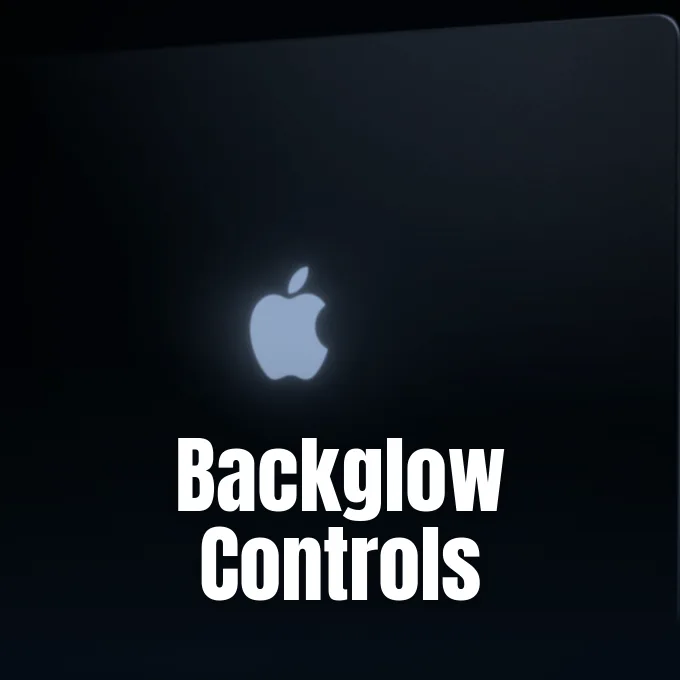
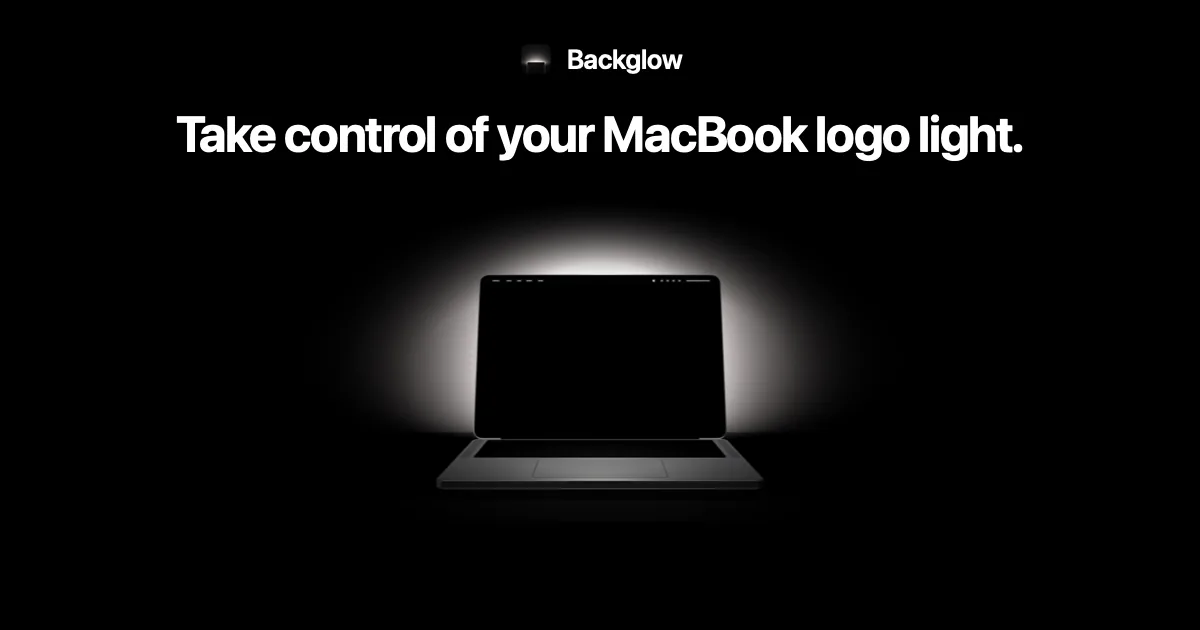
Dutch designer Juan Buis released Backglow on Friday, giving laptop owners a way to control the illuminated lid emblem on new Apple notebooks that arrived in stores on November 6 [1]. It lives as a small dot in the menu bar [6]. Apple brought back the lit insignia after a ten-year hiatus, but the operating system lacks a visible slider in System Settings [2]. The MacBook Pro glowing logo dims or brightens automatically based on room sensors and screen output, leaving users without built-in manual adjustments. Backglow changes that setup by letting owners shut off the lamp, lower brightness, or trigger pulsing effects with a single click [1].
Free Features in Backglow
The core download of Backglow is free, focusing on primary lighting adjustments that give laptop owners direct control over the lid symbol right from the macOS menu bar [1]. It provides instant access to brightness sliders. The free tier also introduces a simple toggle labeled Turn Logo Off, extinguishing the light instantly without prompting users to enter an administrator password. The setting persists after quitting Backglow [6].
Beyond static illumination, Backglow includes two lighting presets named Steady and Breathe. Steady locks the white insignia at a chosen brightness level [6]. Breathe introduces a rhythmic pulse that recreates the breathing sleep indicator light seen on vintage Apple portables, and users can adjust pulse speed through an onboard slider [1]. The pulse speed adjusts smoothly [6].
Apple ties the rear light to the main screen, but Backglow breaks that connection so owners can lower the lid glow without making their display unreadable [1]. Buis designed the utility so that it interacts with system brightness preferences rather than modifying display hardware. It never alters the brightness of the PROLED XDR panel itself. If an owner quits the program after making adjustments, the lid light returns to Apple’s default ambient profile, unless the user explicitly selected the shutoff command. Should someone wish to turn the illumination back on after disabling it, the same menu bar dropdown reactivates the LED in one tap. Battery life stays protected because the utility automatically pauses whenever the screen sleeps, the Mac locks, or the computer enters Low Power Mode [6].
Paid Modes and Agent Alerts
Users who want extra lighting behaviors can purchase the Pro edition of Backglow through an in-app payment. Buis set a $9 introductory price at launch, though the one-time fee will rise to $15 later [1]. A single license covers one Mac with a 14-day refund guarantee [6]. The paid upgrade unlocks Music mode and Agents mode [1].
Music mode synchronizes the glowing logo with whatever audio the computer plays, pulsating to the rhythm of songs or video soundtracks [1]. An intensity slider controls how the light flashes, and users can turn on an optional strobe effect for faster tracks. Privacy stays intact because the software never taps the microphone to capture room noise. Instead, Backglow monitors system audio playback solely on the machine without touching microphones, meaning no acoustic recordings ever leave the laptop or upload to web servers. It offers visual entertainment while keeping personal data private on the device [6].
The second paid feature, Agents mode, connects to Anthropic’s Claude Code command-line tool to provide visual status cues [1]. When linked, the rear Apple logo casts a soft glow while Claude waits for instructions, transitions to a steady pulse while the assistant processes code, and emits quick double blinks when a task finishes and needs human review. Setting up the integration needs one click on Connect in the Backglow menu, which adds configuration hooks to Claude Code. Clicking Disconnect removes those hooks cleanly. Agents keeps working during Low Power Mode so developers can step away and still spot when routines finish [6].


Controlling the MacBook Pro Glowing Logo in Terminal
Before Buis released Backglow, laptop owners who wanted to turn off the lid illumination had to rely on command-line scripts published by Apple. In an official support document published after the laptop rollout, Apple confirmed that the rear logo lights up whenever the Mac is awake. The company explained that in a bright room the logo glows brighter, while in a dim room it stays dimmer at every screen level [4]. Apple offered no graphical button in System Settings for users who prefer a dark lid [2].
To disable the rear lamp through official channels, users launch Terminal from the Applications Utilities folder or open it via Spotlight (Command + Space). They then type or paste sudo defaults write com.apple.CoreBrightness LEBacklightMode -int 0 and press Enter. The utility prompts for an administrator password, which Terminal does not display as keys are struck. Once confirmed, the illumination shuts off without asking for a system restart. The change applies to every macOS user account on the machine, survives boot sessions into macOS Recovery, and carries over if users migrate data to a replacement laptop [2].
Restoring the illumination through command-line tools requires running the defaults delete command targeting com.apple.CoreBrightness in Terminal, or reinstalling macOS to reset internal preferences [2]. Reinstallation resets the light automatically. Online commenter BuffyzDead on 9to5Mac questioned why Apple couldn’t simply provide a graphical switch in System Settings, arguing that entering root commands to manage the MacBook Pro glowing logo felt excessive [4]. Third-party software resolves that frustration [1].
Engineering the MacBook Pro Glowing Logo for OLED
The engineering behind the new lid emblem differs from older Apple laptops due to modern screen construction. On earlier Mac notebooks, the logo was a frosted cutout in the aluminum lid that let light from the display backlight bleed through. When Apple unveiled the redesigned MacBook Pro with OLED and lighter chassis, that optical path became obsolete because self-emissive OLED pixels do not use a backlight. Without a backlight panel to draw from, illuminating the symbol meant Apple had to build a separate light source [1].
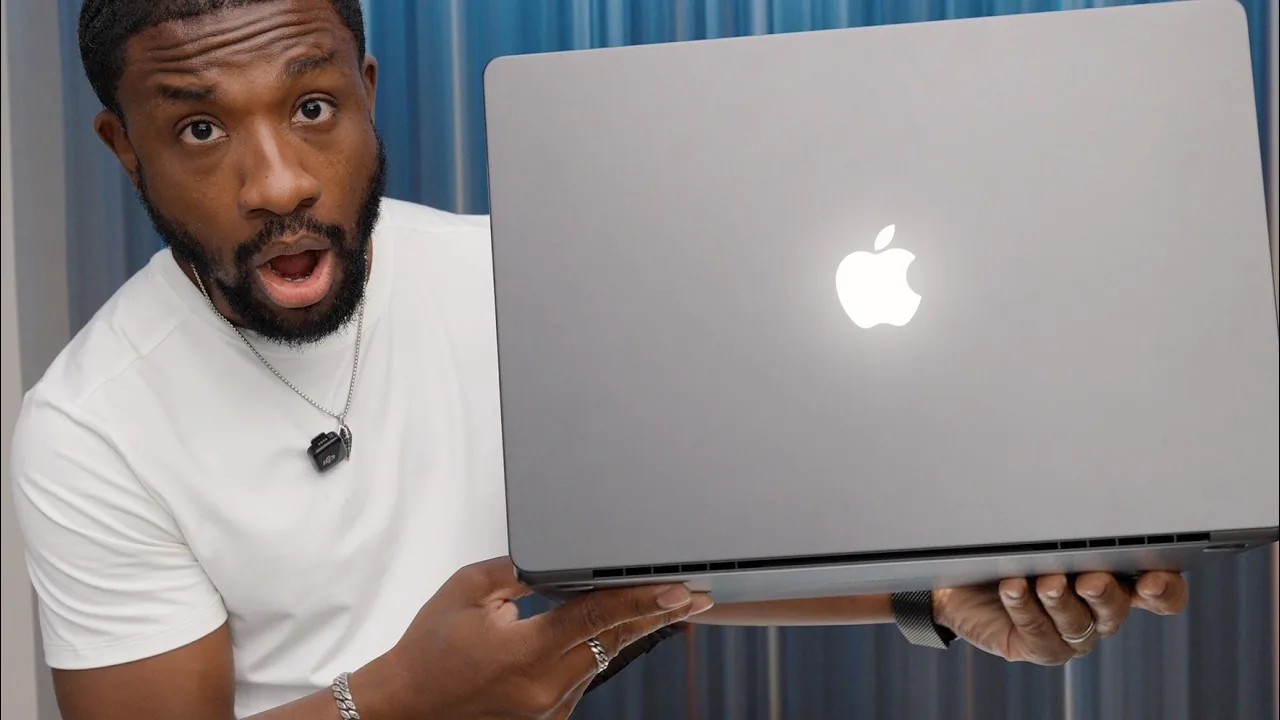
Technology writer John Gruber of Daring Fireball learned that Apple engineered a custom light source inside the lid without increasing the overall thickness of the notebook. When Gruber asked an Apple representative why the company undertook such engineering just to bring the feature back, the representative responded, “Because it’s awesome” [1]. Developer Gui Rambo and 9to5Mac reviewer Chance Miller examined the assembly, confirming that the logo looks like polished metal when closed, identical to Apple laptops sold since 2016 [4]. Once opened, the emblem lights up through an energy-efficient white LED [1].
Developer Juan Buis confirmed the lid houses a white LED that can’t change colors, limiting Backglow to brightness adjustments and pulse patterns [1]. Video creator Judner Aura showcased the hardware on his YouTube channel UrAvgConsumer, showing how the logo dims in sync with the display panel. The laptop lineup, featuring a $2,899 starting price for 14-inch models and $3,399 for 16-inch models, arrived in stores after an introductory event in Los Angeles. Longtime Apple customers welcomed the hardware revival [5].

Evolution of the Apple Laptop Emblem
The history of illuminated Apple portables stretches back nearly three decades. Apple first introduced an illuminated emblem on the third-generation PowerBook G3 in 1999. For sixteen years, the white glowing symbol served as an unmistakable hallmark of Mac laptops in public spaces and university classrooms. Early versions displayed the Apple logo right-side up to the person carrying the closed laptop, meaning the insignia sat upside-down to onlookers once the lid was open [2].
Former Apple employee Joe Moreno said Steve Jobs initially prioritized the owner over the public. Apple researchers observed that users consistently tried to open notebooks from the wrong edge if the emblem faced the onlooker. Jobs believed that serving the daily customer experience took precedence over advertising the brand to people in the room. Jobs later reversed that philosophy, saying, “Opening a laptop from the wrong end is a self-correcting problem that only lasts a few seconds. However, viewing the upside logo is a problem that lasts indefinitely”. Apple soon flipped the graphic so spectators saw it upright [2].
In 2015, Apple started removing the illuminated insignia from its portable lineup, beginning with the ultra-thin 12-inch MacBook. The company replaced the lit cutout with a polished metal badge similar to the design seen on iPads. When Apple redesigned the MacBook Pro in 2016, it extended the unlit metal look to the pro family, leaving the glowing symbol dormant for ten years [2]. Editorial commentary from AppleInsider argued that while some buyers welcomed the restoration, others immediately sought ways to dim the bright white light [3]. The emergence of Backglow bridges that gap, pairing new OLED hardware with granular user controls [1].
- ONLINE NEWS Rossignol, J. (2026, November 7). ‘Backglow’ lets you customize new MacBook Pro’s glowing Apple logo. MacRumors. [Article Link]
- ONLINE NEWS Hardwick, T. (2026, November 6). Control the glowing Apple logo on your new MacBook Pro. MacRumors. [Article Link]
- ONLINE NEWS AppleInsider. (2026, November 6). How to dim or turn off the glowing Apple logo on the new MacBook Pro. AppleInsider. [Article Link]
- ONLINE NEWS Mendes, M. (2026, November 5). Apple explains how to turn off the new MacBook Pro’s glowing logo. 9to5Mac. [Article Link]
- ONLINE NEWS Rossignol, J. (2026, October 28). Here’s a real-world look at the new MacBook Pro’s glowing Apple logo. MacRumors. [Article Link]
- WEBSITE Backglow. (2026, November 7). Backglow: Full control of your MacBook logo light. Backglow. [Article Link]


