





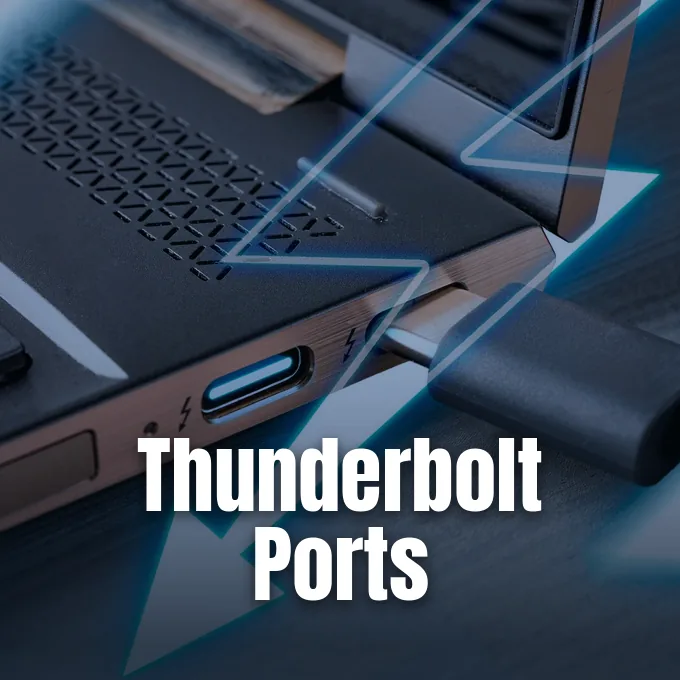
Computer shoppers often face confusion because modern laptops share identical port shapes for different hardware standards. A technical evaluation of Thunderbolt vs USB-C starts with understanding that one name describes a plug shape but the other specifies an advanced data transfer protocol. Every current Thunderbolt port adopts the oval Type-C connector, but many basic USB-C ports lack the controllers needed for high-speed video or bus tunneling. RF Wireless World described Thunderbolt as a connectivity standard that “combines data transfer, video transmission, and power delivery through a single compact cable” [2]. Thunderbolt guarantees higher baseline data rates, native multi-display outputs, and direct PCIe access for demanding desktop peripherals [1, 4].
Thunderbolt vs USB-C Core Differences
Why do two connection standards with identical physical plugs deliver contrasting performance? Intel first began work on the interface under the codename Light Peak at the 2009 Intel Developer Forum, where Jason Ziller presented early optical components under a microscope at the Intel Optical I/O Program Office in Brussels. The platform debuted on Apple MacBook Pro laptops on February 24, 2011, establishing a unified interface for storage and display hardware. CNET reporter Brooke Crothers tracked early rumors about the interface [5].
Shoppers often assume that any port sharing the oval Type-C form factor offers identical capabilities. Anita George said in Digital Trends that Thunderbolt 3 and Thunderbolt 4 rely on the USB-C plug, but standard USB-C ports are not built to support Thunderbolt data streams. Hardware makers decide which protocols each port supports [1].
Computer makers add Thunderbolt when users need workstation performance on portable machines. The hardware allows creative professionals to hook up external graphic cards, multi-drive storage arrays, and high-resolution monitors through a single port rather than cluttering their desks with separate cables [2, 3]. Megan Edwards from HP said that video editors, audio producers, and 3D animators rely on these high-speed lanes to process large projects without workflow bottlenecks [3]. This Thunderbolt vs USB-C comparison shows how internal controllers split the hardware market [2, 4]. Standard USB-C ports cost less to build into entry-level computers, which explains why budget notebooks skip the extra controller chips altogether [2]. Workstation manufacturers install Thunderbolt to serve power users who transfer heavy media files every day [3, 4].
Connector Design
Connection standards require separating the hardware plug from the electronic protocol running through its wires. The USB-C standard specifies a reversible 24-pin design that eliminates the frustration of upside-down cables and provides metal contact pins for power, standard data, and high-speed lanes. Protocols determine what signals travel through those pins. A USB-C socket can transport basic USB data, power delivery negotiation, or alternate modes like video (DisplayPort) depending on how the computer motherboard is wired. Standard USB-C ports lack the dedicated controller hardware needed to tunnel PCIe signals. Jayric Maning said that protocols establish device features but interfaces define physical shapes. This division explains why matching plugs perform differently [4].
Jayric Maning said in MakeUseOf that “USB-C refers to the interface or the physical shape of the port and cable, while Thunderbolt is a protocol that uses the interface to deliver more advanced features” [4]. Early versions of Thunderbolt did not use the Type-C shape. Thunderbolt 1 and Thunderbolt 2 used Apple Mini DisplayPort connectors before adopting USB-C with Thunderbolt 3 in 2015. Apple added ports across the 21.5-inch iMac, 27-inch iMac, Mac Mini, and MacBook Air [5].
Thunderbolt controllers manage incoming and outgoing traffic by multiplexing separate data streams into two duplex lanes. The controller combines PCI Express data from the processor with DisplayPort video streams from the graphics card, sending both through copper wire. Another controller at the receiving end demultiplexes the signal and directs data to connected peripherals. Sony paired optical hardware on the Sony Vaio Z21 notebook with the external Power Media Dock [5].
Generational Transfer Speeds
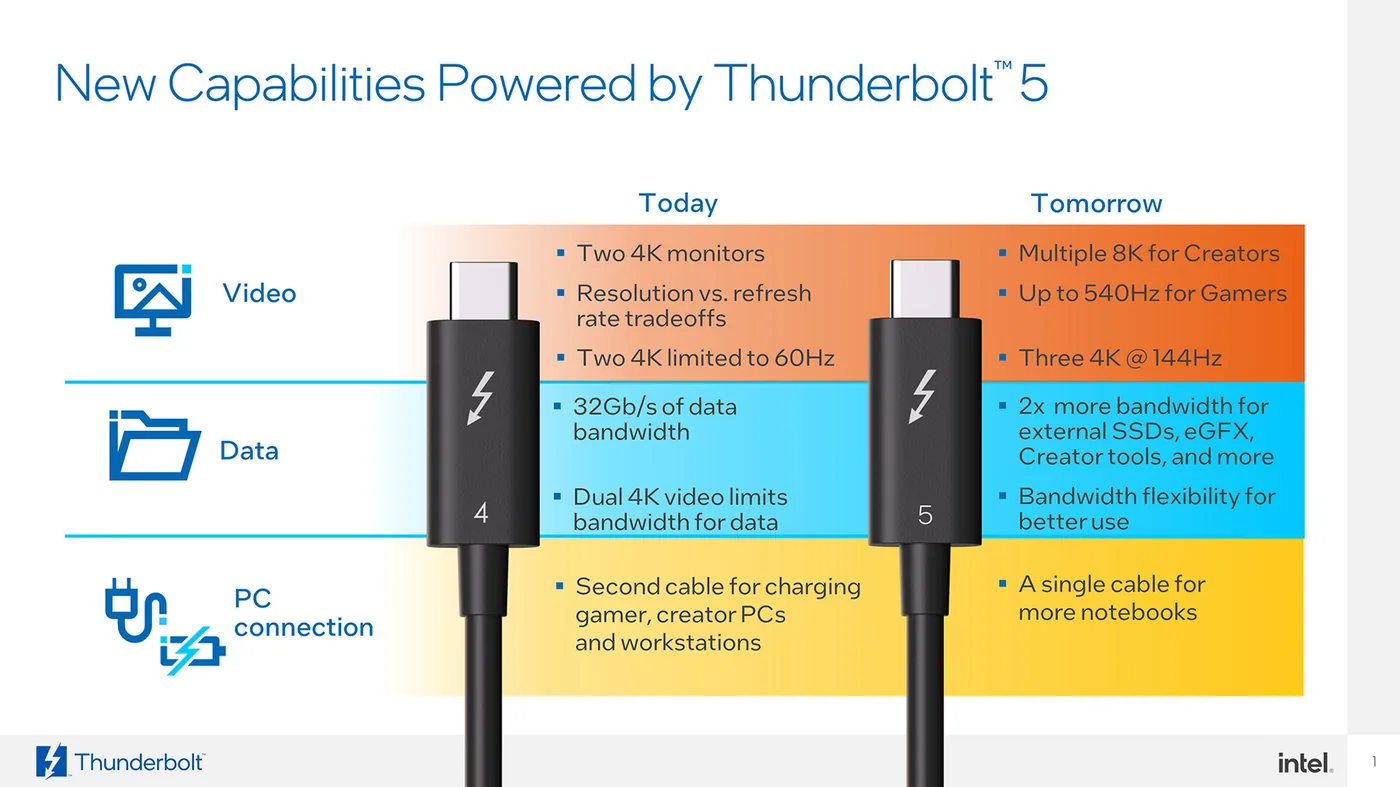
Bandwidth numbers show the performance gap between connection types over past hardware generations. Thunderbolt 1 delivered 10 Gbps per channel in 2011, and Thunderbolt 2 doubled transfer speeds to 20 Gbps in 2013 by aggregating two channels under the Falcon Ridge controller. Asus supported this standard on the Asus Z87-Deluxe/Quad motherboard and Apple added it to the Retina MacBook Pro. Thunderbolt 3 arrived in 2015 with 40 Gbps of total bandwidth (5 GB/s). The Thunderbolt vs USB-C speed metrics show a wide performance gap [2, 5].
Thunderbolt 4 maintains the 40 Gbps ceiling established by Thunderbolt 3, but it changes certification standards. Intel requires every Thunderbolt 4 computer to achieve the full 40 Gbps data rate, but Thunderbolt 3 implementations allowed some laptop makers to run ports at lower bandwidths [1]. Standard USB-C connections exhibit wider variance. A basic USB-C port might run at USB 3.0 speeds of 5 Gbps, but faster USB 3.2 Gen 2×2 implementations reach 20 Gbps [2, 4].
The introduction of Thunderbolt 5 widens the speed gap even further for professional computing setups. Intel announced the Thunderbolt 5 specification in September 2023, and the first retail products arrived on market shelves in mid-2024 [1, 4]. Thunderbolt 5 delivers 80 Gbps of bidirectional bandwidth, doubling the throughput of Thunderbolt 4 and supporting an asymmetric boost mode that reaches 120 Gbps for high-resolution video transmissions. Mainstream USB-C peripherals remain centered around 10 Gbps and 20 Gbps connections, making Thunderbolt the clear leader for rapid transfers of 8K video footage and huge database backups [4]. RF Wireless World said that high transfer rates let users back up raw media without waiting hours for drive synchronization [2]. Faster bus speeds also reduce latency during live multi-track audio recording sessions on Mac and PC systems [3].
PCIe Tunneling
Direct access to the computer processor bus serves as the engineering foundation of Thunderbolt capability. Thunderbolt tunnels Peripheral Component Interconnect Express (PCIe) lanes through the cable, treating connected peripherals as internal components [2, 5]. Thunderbolt 3 provided up to 16 Gbps of dedicated PCIe data bandwidth, but Thunderbolt 4 doubled that capacity to 32 Gbps [1, 4]. Portable drives achieve internal NVMe speeds [1].
External graphics enclosures rely on PCIe tunneling to connect desktop video cards to portable laptops. A gamer or 3D artist can plug a notebook into an external graphics housing equipped with a desktop graphics card, boosting frame rates and rendering speeds over a single cord [2, 3]. Thunderbolt 5 pushes PCIe data bandwidth up to 64 Gbps, unlocking greater graphics rendering potential for compact mobile computers. Standard USB-C connections cannot support external graphics units because USB protocols lack the low-latency PCIe pipeline [2, 4]. Megan Edwards said that HP workstations use these direct lanes to accelerate 3D modeling workflows. Designers avoid performance bottlenecks by offloading heavy rendering tasks to external processing units connected through Thunderbolt [3].
Security architecture evolved as PCIe transfer speeds increased across hardware generations. Early Thunderbolt interfaces were vulnerable to direct memory access attacks from malicious plug-in devices because PCIe lanes access system RAM. Intel resolved this security challenge in Thunderbolt 4 by adding Direct Memory Access protection, preventing unauthorized peripherals from reading computer memory. Jayric Maning tested cable performance on modern PC systems [4].


Display Outputs for Thunderbolt vs USB-C Systems
Video transmission shows another area where hardware capabilities diverge between connection standards. Thunderbolt incorporates native DisplayPort signals within its controller lanes, guaranteeing reliable multi-monitor support without extra adapter chips [2, 5]. Thunderbolt 3 could drive a single 5K screen, but Thunderbolt 4 mandates support for at least dual 4K displays at 60 Hz (60 Hz) or a single 8K panel [1, 4].
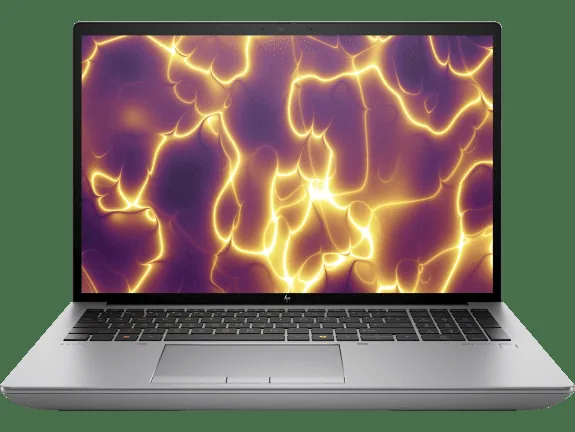
Computer manufacturers promote multi-monitor flexibility as a key selling point for desktop replacement systems. An explainer from HP Tech Takes pointed out that professional workstations like the HP ZBook Studio and HP ZBook Fury 16 G11 rely on Thunderbolt ports to drive complex visual production setups. The company also builds all-in-one machines like the HP Envy 34 desktop and HP Envy All-in-One 34-c1075t with Thunderbolt 4 connections for creative studios. Megan Edwards evaluated workstation demands for studio environments [3].
Standard USB-C ports handle video output with much less consistency across consumer hardware. A USB-C port can only drive an external screen if the computer manufacturer implemented DisplayPort Alternate Mode on that specific socket. Many budget laptops feature USB-C ports that only handle data transfers and device charging, leaving users stranded when they connect a USB-C monitor [1, 4]. Even when DisplayPort Alternate Mode is present, standard USB-C lacks the bandwidth to drive dual uncompressed 4K monitors while running high-speed external storage drives [2, 4]. Thunderbolt 5 pushes display boundaries further by supporting up to three 4K monitors or dual 8K panels, providing the high refresh rates needed by gamers and visual effects artists [4].
Peripheral Daisy Chains
Cable management benefits from daisy chaining, which lets computers connect multiple peripherals in a single continuous line. A single Thunderbolt port supports up to six devices connected sequentially without requiring separate cable runs back to the host computer [2, 3, 5]. RF Wireless World reported that Thunderbolt supports cable lengths up to 300 feet (100 meters) using optical cabling [2].
The architectural arrangement of Thunderbolt peripheral chains resembles early computer standards like ACCESS.bus, which routed low-speed data through display wiring. Apple documentation notes that native Thunderbolt monitors can sit at any position along the six-device chain, but older DisplayPort 1.1a screens must connect at the end because they cannot pass high-speed signals down the line. Users connected devices sequentially to the Apple Thunderbolt Display [5].
Standard USB-C ports cannot match this sequential chaining method across connected devices. The universal serial bus architecture supports up to 127 individual peripherals and FireWire supported up to 63, but standard USB relies on hub topologies where every branch wires back to a central controller. Daisy chain setups in Thunderbolt vs USB-C environments show contrasting topologies [2, 5]. Standard USB-C ports require display splitters inside hubs to run multiple monitors, which often struggle with bandwidth congestion [2, 4]. Thunderbolt handles daisy-chained bandwidth natively, giving each peripheral dedicated PCIe and video lanes [2, 5]. A user can connect a notebook to an external storage drive, run a second cable from that drive to a docking station, and hook a display to the end of the chain [3, 5].
Power Delivery Rules
Power transmission is a central feature for modern laptop docks, allowing a single desktop connection to recharge a notebook battery while transferring files. Both connection types integrate the USB Power Delivery specification, but Thunderbolt establishes firm baseline rules for host machines [1, 3]. Thunderbolt 3 and Thunderbolt 4 ports supply up to 100W of charging power to the host computer [3].
Standard USB-C ports feature unpredictable power delivery across different laptop models. A full-featured USB-C port can provide 100W charging, but many budget laptops include USB-C ports limited to 15W (15W) or even 7.5W, which is insufficient to power a running computer [3, 4]. Users plugging high-draw external hard drives into basic USB-C ports may experience drive disconnections due to power shortfalls [3]. Thunderbolt guarantees at least 15W of bus power for accessories [1].

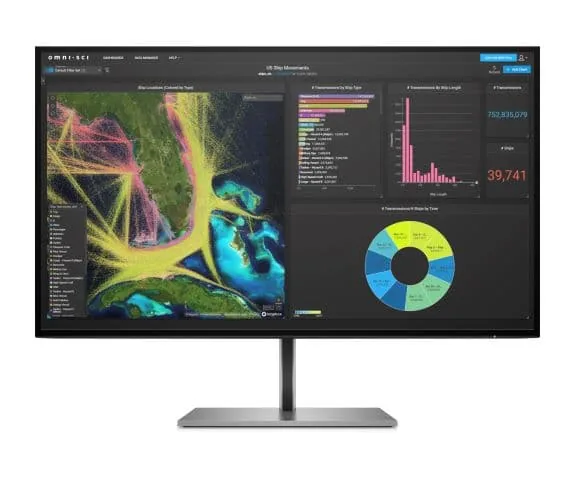
The introduction of Thunderbolt 5 raises power capabilities to support energy-hungry mobile workstations and gaming hardware. Thunderbolt 5 supports the USB Power Delivery 3.1 standard, delivering up to 240W of charging current through a single certified connection. This power boost enables large gaming laptops and workstation notebooks to charge at full speed without needing heavy proprietary power bricks [4]. Megan Edwards said in HP documentation that single-cable docking solutions streamline office spaces by combining video transmission, data transfer, and high-wattage charging into one reliable cable. HP displays like the HP Z27k G3 4K display and laptops like the HP Spectre x360 14t-eu000 utilize this single-cord design to power connected laptops while receiving 4K video feeds at 60 Hz. Clean desk layouts reduce cable clutter [3].
Cable Compatibility for Thunderbolt vs USB-C Ports
Hardware interoperability between Thunderbolt vs USB-C standards is largely preserved thanks to built-in backward compatibility in Thunderbolt controllers. All Thunderbolt 3, Thunderbolt 4, and Thunderbolt 5 ports accept standard USB-C peripherals, functioning reliably at the maximum speed supported by that USB device. A USB-C drive connected to a Thunderbolt port operates at the drive’s rated speed ceiling [4].
Cable selection influences transmission speeds and link reliability over extended distances. Passive copper cords suffer signal degradation over longer runs, demanding active processing chips in cables longer than 0.5 meters (1.5 feet) for full Thunderbolt 3 throughput. In 2013, Sumitomo Electric began marketing optical Thunderbolt cables of up to 30 meters in Japan, while Corning Inc. introduced 60-meter optical cables in the United States [5]. RF Wireless World said that premium cable engineering increases purchase costs compared to generic USB cables, making cable certification necessary when setting up high-performance workstations. High-quality cables maintain stable data transfers during heavy file operations [2]. Certified cables guarantee full bandwidth for professional setups [1, 4].
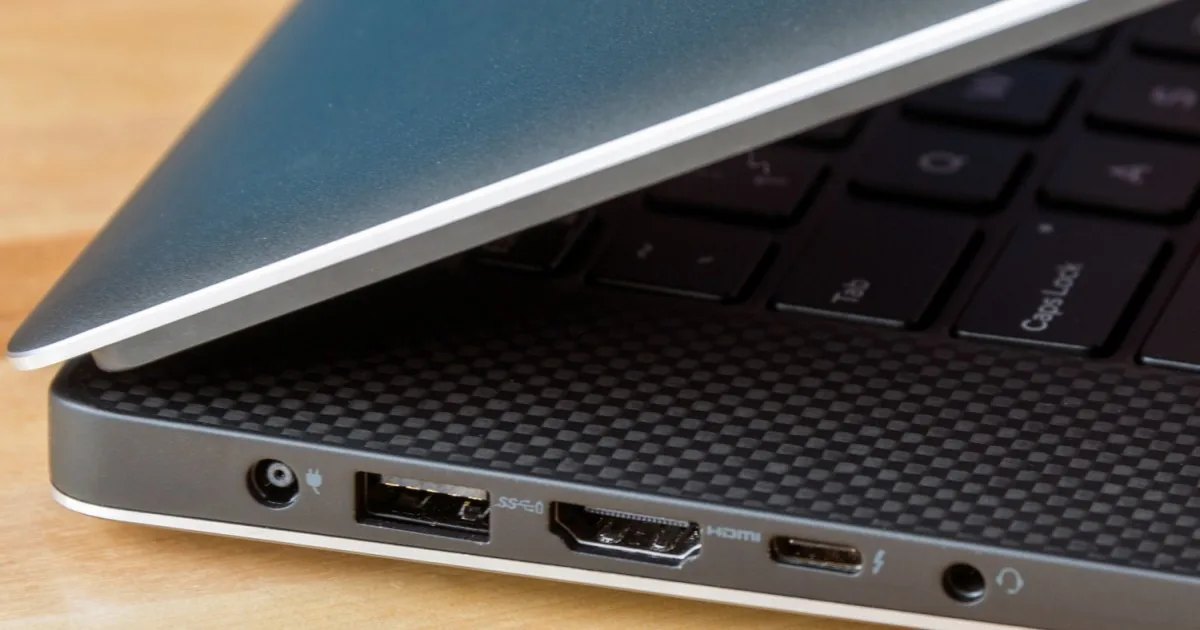
Genuine Thunderbolt ports feature an engraved lightning bolt logo next to the Type-C port opening on the laptop chassis [1, 3]. If a USB-C port lacks the lightning bolt icon, users should verify hardware specifications online to determine whether the socket supports Thunderbolt, DisplayPort Alternate Mode, or only basic USB data [1].
- ONLINE NEWS George, A. (2019). What is Thunderbolt, and is it different from USB-C? Digital Trends. [Article Link]
- WEBSITE RF Wireless World. (2026). Thunderbolt Interface: Is It Right for You? [Article Link]
- WEBSITE Edwards, M. (2026). What is a Thunderbolt Port? Features and Benefits for PCs and Monitors. HP Tech Takes. [Article Link]
- ONLINE NEWS Maning, J. (2024). Here’s How to Understand How Thunderbolt Ports Actually Work. MakeUseOf. [Article Link]
- WEBSITE Wikipedia contributors. (n.d.). Thunderbolt (interface). Wikipedia. [Article Link]


